To start this workflow, you will need a list of target keywords to base your optimization plan around. The steps will be setting up Position Tracking, optimizing existing pages with on-page SEO, and creating new content to target new keywords.
1. Set up Your Tracking
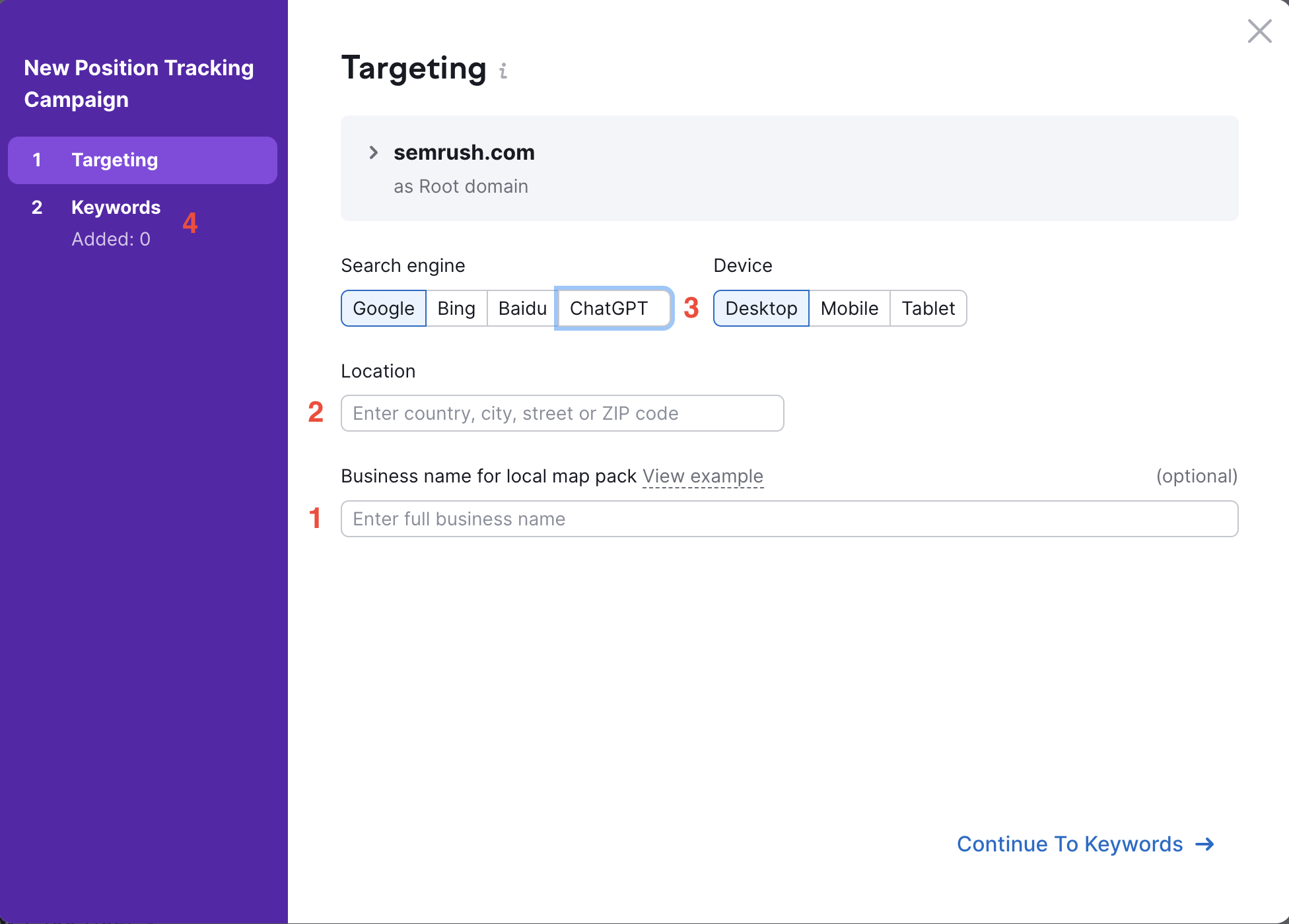
To configure Position Tracking:
- Write the name of your business exactly as it would appear in a Local Pack (if you target local keywords).
- Set the target location to the specific location where you want to measure your visibility.
- Decide whether to track desktop, mobile, or tablet results, and select a search engine.
- Add your target keywords to track.
Once the tool is configured:
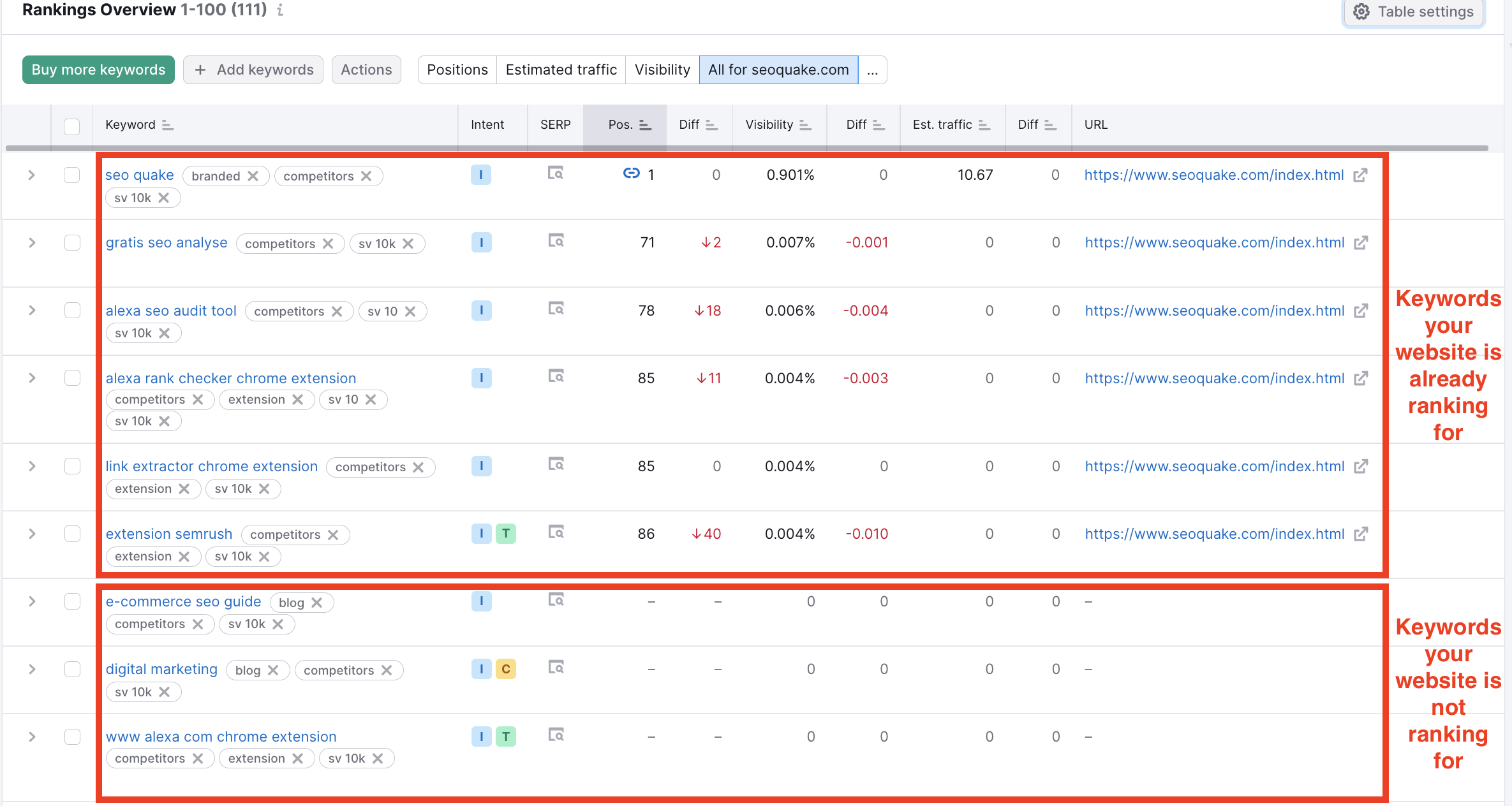
- In the Rankings Overview report, you’ll see the keywords where your website is already ranking for and the keywords where your website is not ranking for at all.
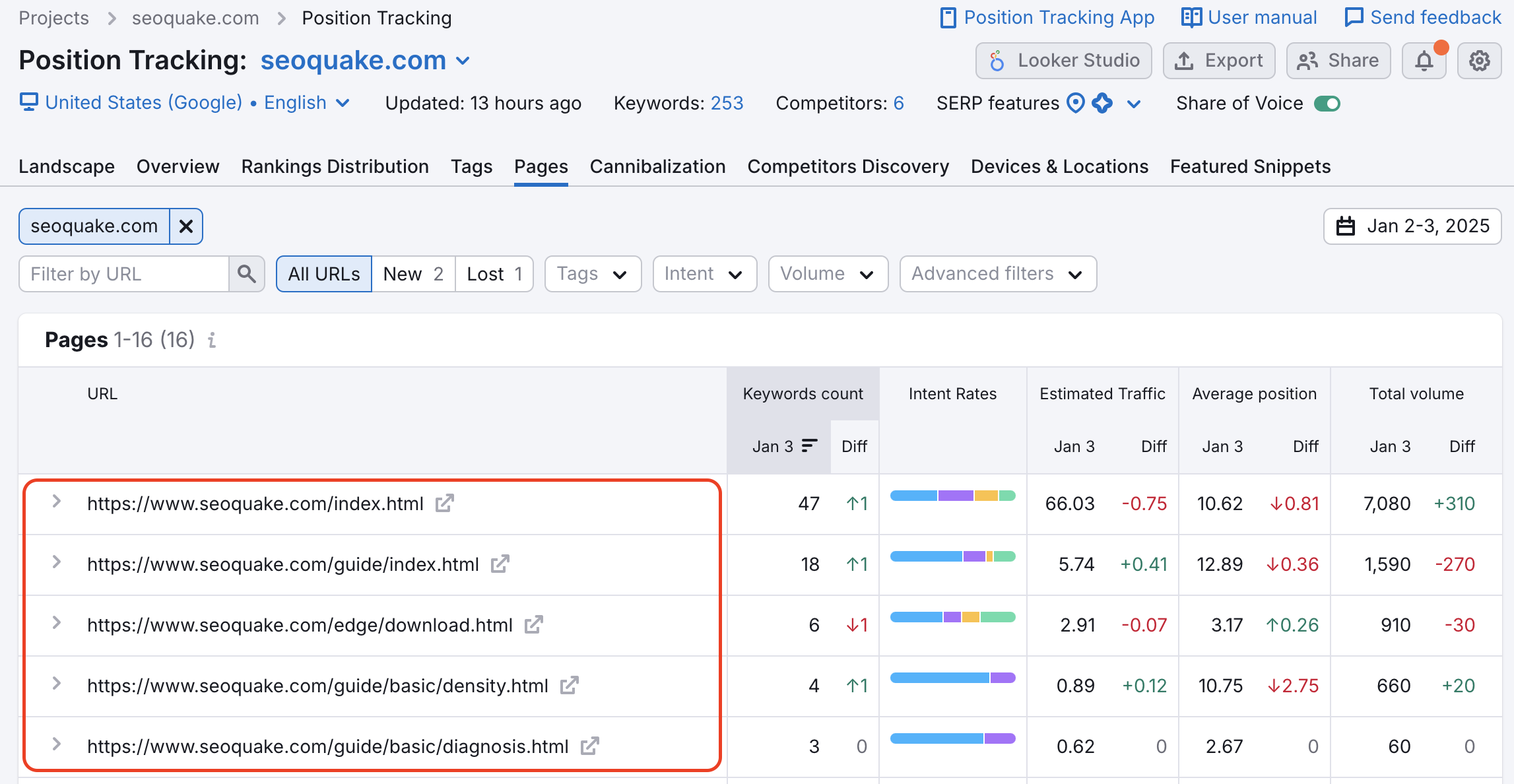
- Go to the Pages report to see the pages on your site that are already ranking somewhere in Google’s top 100 results for your target keywords.
To start optimizing your website have two choices:
- Optimizing your pre-existing pages (On Page SEO Checker)
- Creating entirely new content to target the keywords you are not ranking for (SEO Content Template, SEO Writing Assistant, and Content Toolkit)
2. Optimize Your Existing Pages
On Page SEO Checker gives you ideas on how to optimize specific pages on your website for your choice of target keywords.
- To configure, set your target location and device type and continue until you see a table with a list of keywords and “Your Highest Ranking Page”
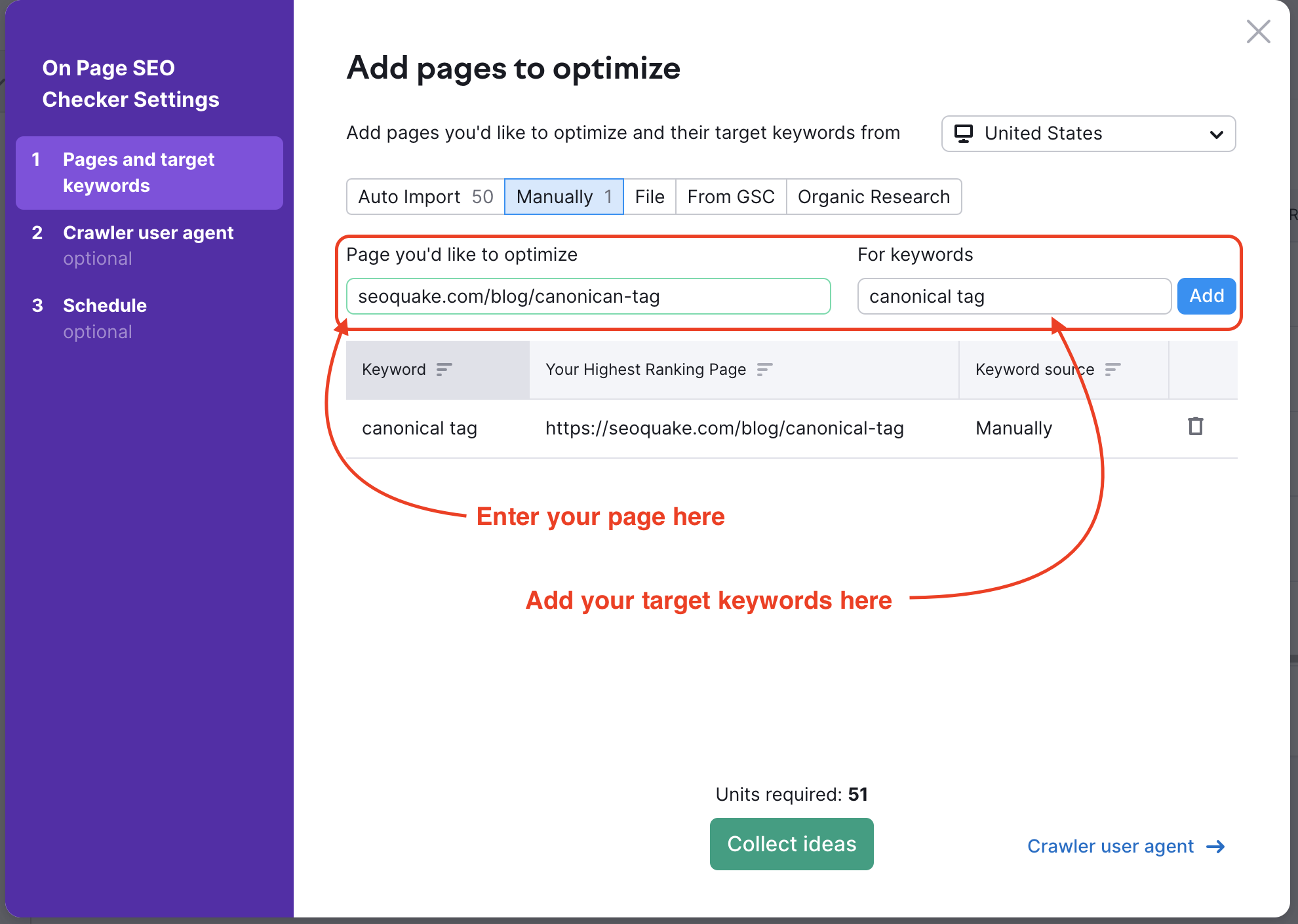
- Use manual import to assign the remaining keywords from your target keyword list to the existing pages that you want to use to target each keyword.
- Once you’ve added all of your keywords and pages to optimize, click “Collect ideas”
- The tool will show you all of Semrush’s recommendations to optimize your pages.
- Follow the ideas suggested and watch progress in Position Tracking Visibility, and Progress tab in On Page SEO Checker
- Export the list of ideas from On Page SEO Checker to share with teammates.
3. Create New Optimized Content
To create new optimized content, go to the SEO Writing Assistant and enter a target keyword. SEO Writing Assistant generates recommendations based on top-ranking competitor content for those keywords, and scores your content in real time as you write.
- Enter your target keywords and select your target location and device type to generate recommendations.
- Write your content directly in the SEO Writing Assistant editor and use the live score to track your progress across Readability, SEO, Originality, and Tone of Voice.
- If you use Google Docs, connect SEO Writing Assistant via the Google Workspace add-on to grade your content as you write.
- If you use WordPress, connect SEO Writing Assistant via the WordPress plugin to grade your draft in the WordPress CMS.
After you've created new content and updated your existing pages, build backlinks to boost their SEO.
Next steps
- To streamline the full content creation process — from topic research and brief generation to article writing and optimization — see Content Toolkit.
- See our step-by-step guide to writing SEO-friendly articles.