There are two ways to disable email notifications—via the Semrush interface and newsletters.
Disable notifications via the interface
You can manage your email notifications from the “My Profile” panel. Go to Notifications, select the tool you would like to disable notifications from and move the toggle. If you want to disable all notifications, simply click the “Unsubscribe from all” button in the top-right corner.

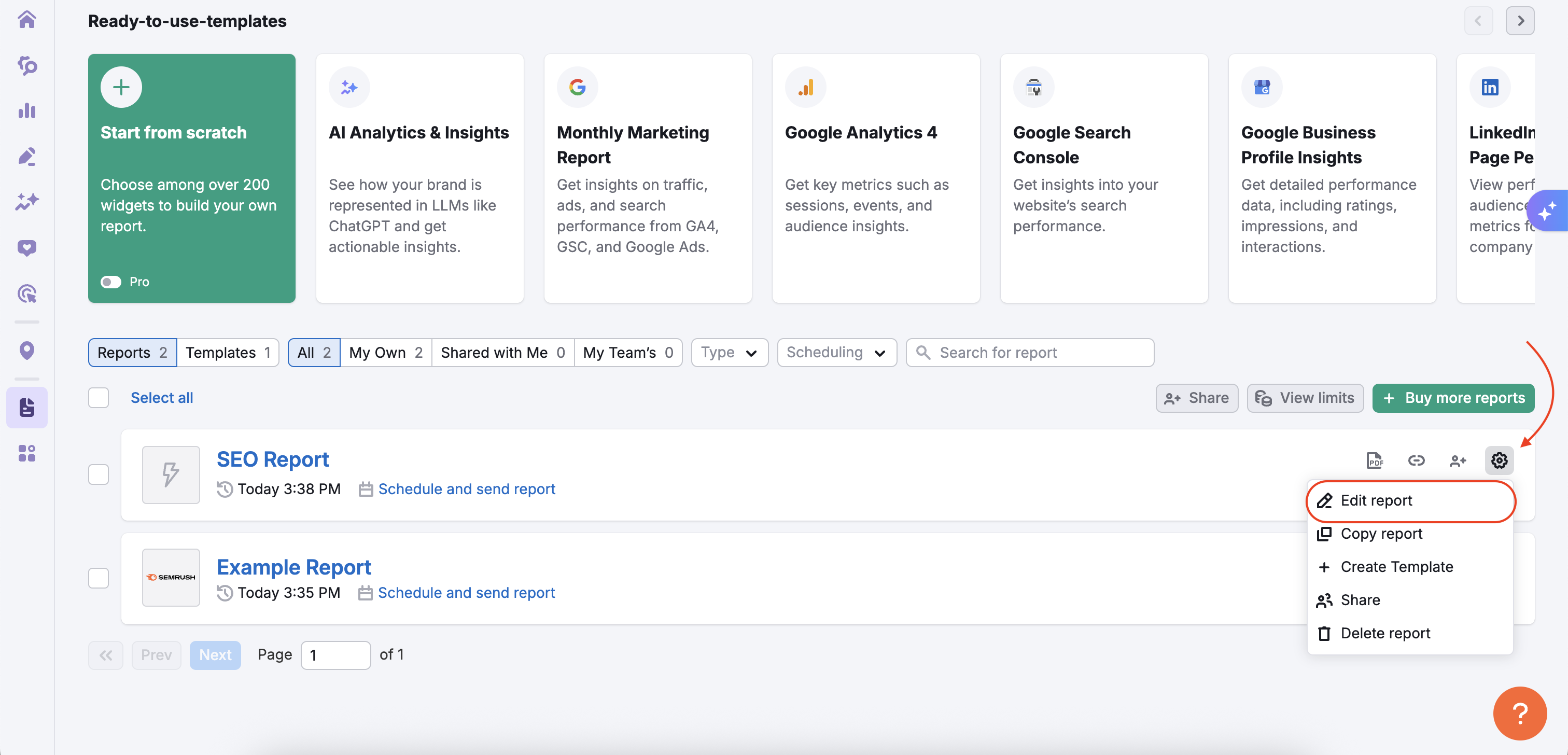
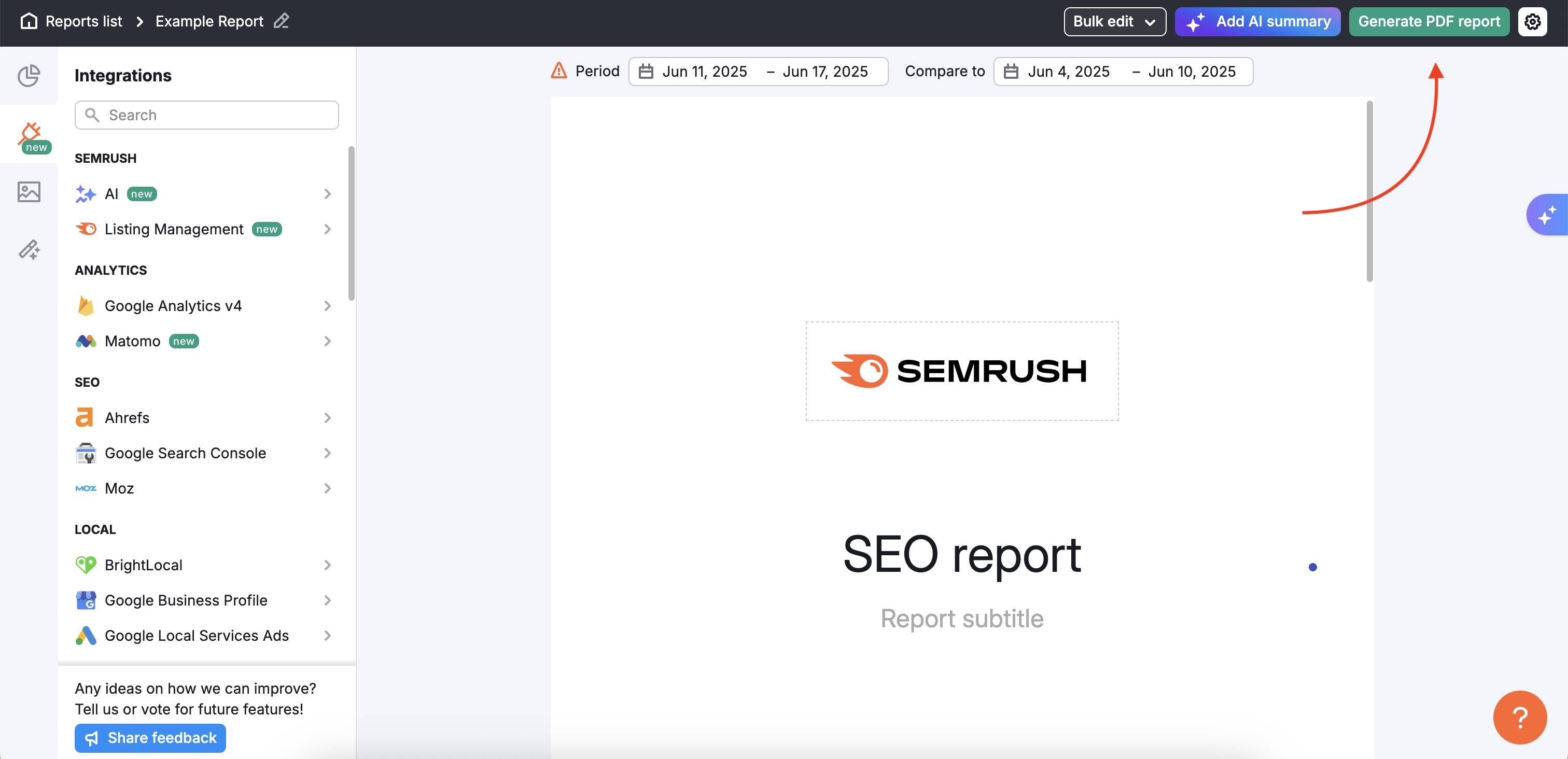
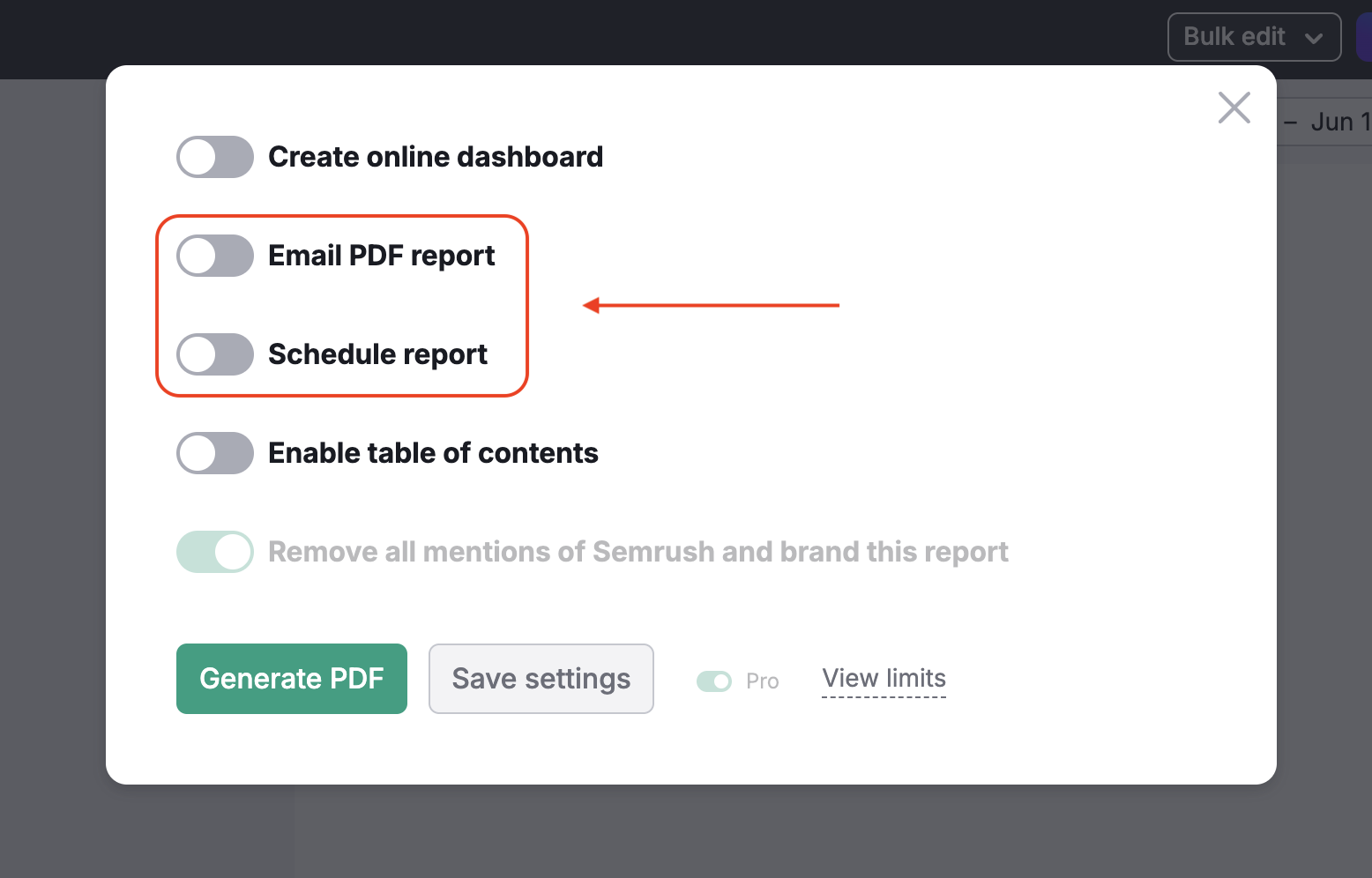
In case you want to stop receiving pdf reports that you created in the My Reports tool, please go to the My Reports panel and change the scheduling settings of the report. Open the report, turn off “Email report” and “Schedule report”, and save the changes.
Disable notifications via newsletters
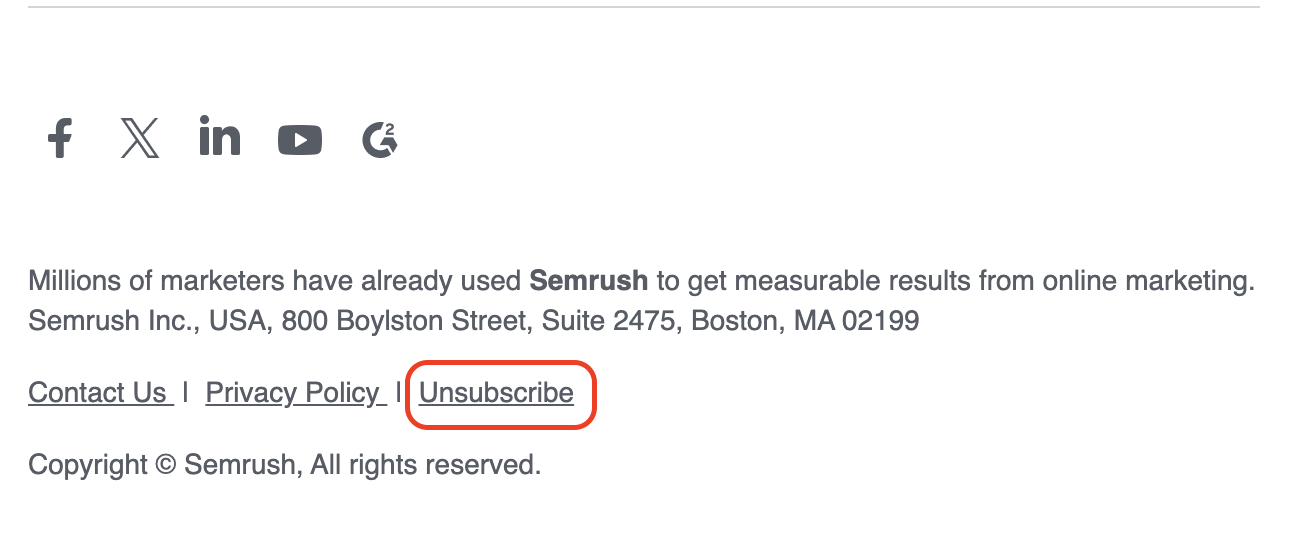
At the bottom of an email you receive from Semrush, you will have the option to configure your email communication preferences. To stop email notifications from Semrush, click the "Unsubscribe" button at the bottom of the emails.
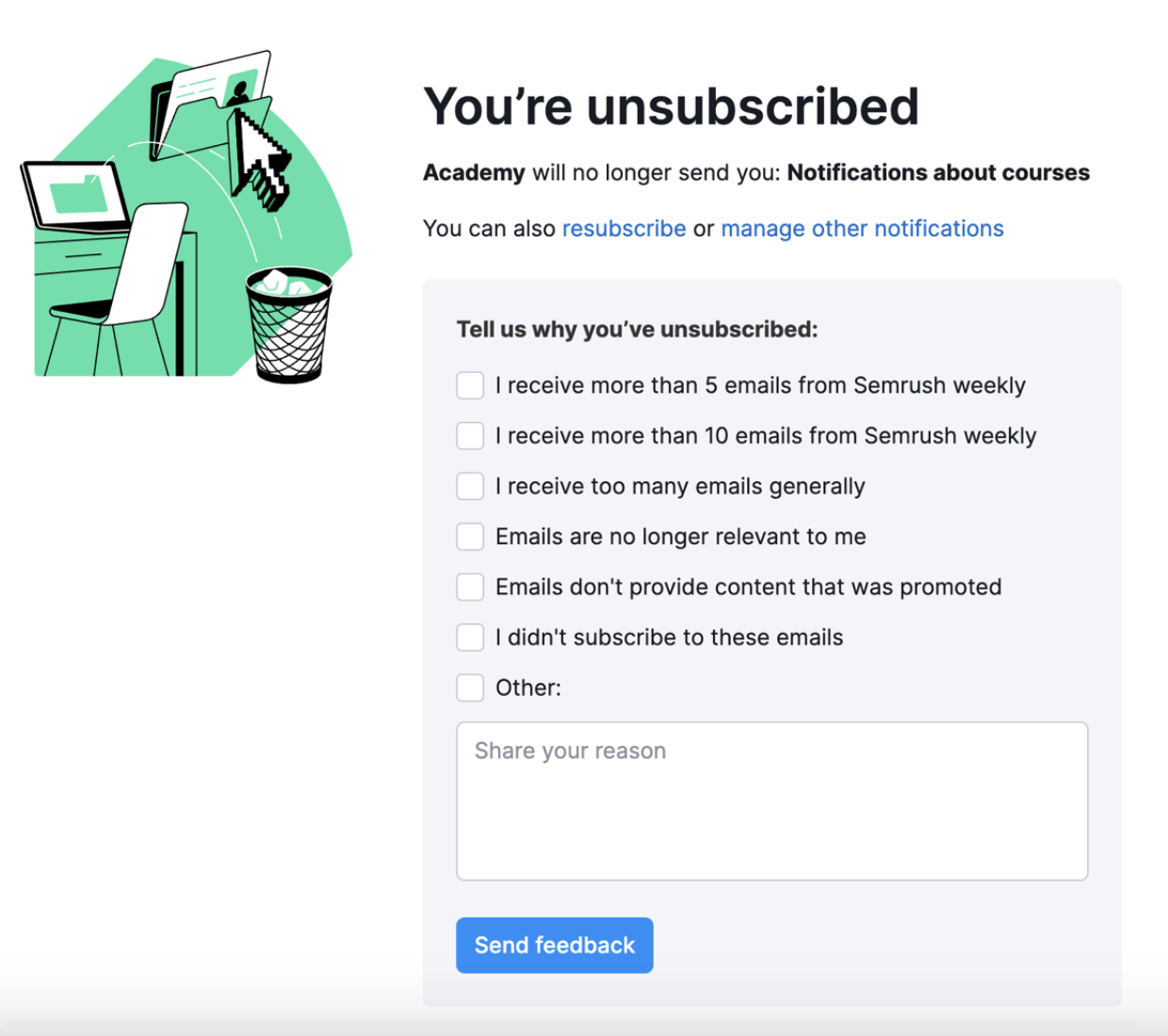
You will be forwarded to the feedback form after selecting “Unsubscribe”. Aside from an opportunity to share your feedback on email alerts, you will see a confirmation that you have disabled notifications and an option to undo this action:
Additionally, you can disable notifications in the Gmail interface by clicking on the "Unsubscribe" button at the very top of the email:

Troubleshoot email notifications
Where notifications are sent
By default, most Semrush tools send email notifications to the email address associated with your account. For some tools, you can change the recipient email address or add multiple recipients.
If you need notifications sent to a different email address but don’t see an option to change the recipient for this tool, this feature isn’t supported. As a workaround, you can set up an automatic forwarding rule in your email client:
Not receiving notifications
If you’re not receiving some or all email notifications, try the following:
1. Check your notification settings in Semrush
Go to My Profile → Notifications and make sure the relevant notifications are enabled for the tools you use.
2. Check your email inbox rules and folders
- Look in Spam, Promotions, or other filtered folders
- Make sure no rules are blocking or moving Semrush emails
3. Review your email provider or corporate filters
If you’re using a corporate email address, contact your IT administrator to confirm that:
- No spam filters or security rules are blocking Semrush emails
- Emails from Semrush domains are allowlisted